Get started
Setting up Locus
Locus has two parts. The Locus Sync extension for Chrome brings in the posts you have already saved on Instagram and X. The app, on iPhone or in a browser, is where you use them. Set up the extension first; the app comes after.
What you need
- A computer running Chrome (or Edge, Brave, Arc). The extension is the only way to bring in the saves you already have, and it runs in desktop Chrome only. The first sync has to happen here, not on a phone.
- Your Instagram or X account, signed in in that browser. Either one is enough to start.
- An iPhone, if you want the iOS build. Optional. The web app runs in any browser.
-
Add Locus Sync to Chrome
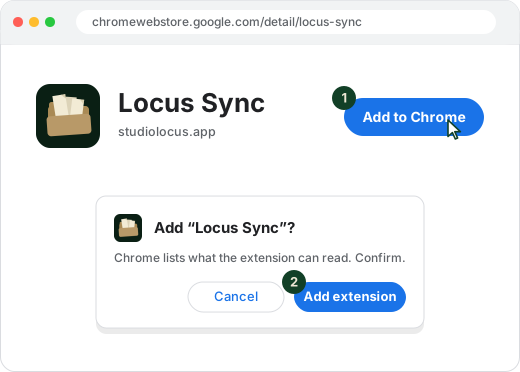
Open the Locus Sync listing on the Chrome Web Store and click Add to Chrome. Chrome asks you to confirm; click Add extension. That is the whole install.
No Chrome right now? You can still add posts one at a time from your phone. On iPhone, share a post from Instagram, X or Safari and pick Locus in the share sheet. On Android, install the web app to your home screen and share to it. Bringing in the saves you already have still needs the extension.
-
Pin it, then open it
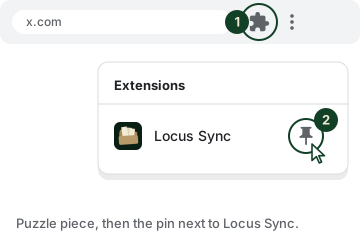
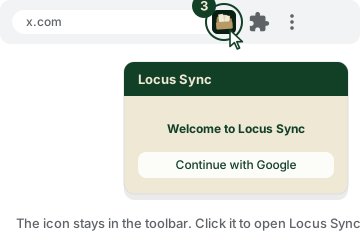
Chrome hides new extensions behind the puzzle-piece button at the right end of the address bar. Click it, find Locus Sync in the list, and click the pin next to it. The Locus icon now sits in the toolbar. Click that icon to open the extension.
The first time it opens, the extension shows a short notice about what it does with your data: your platform login stays on your device, your saved posts sync to your own account, it never posts or acts as you. Read it and click I understand, enable Locus Sync.
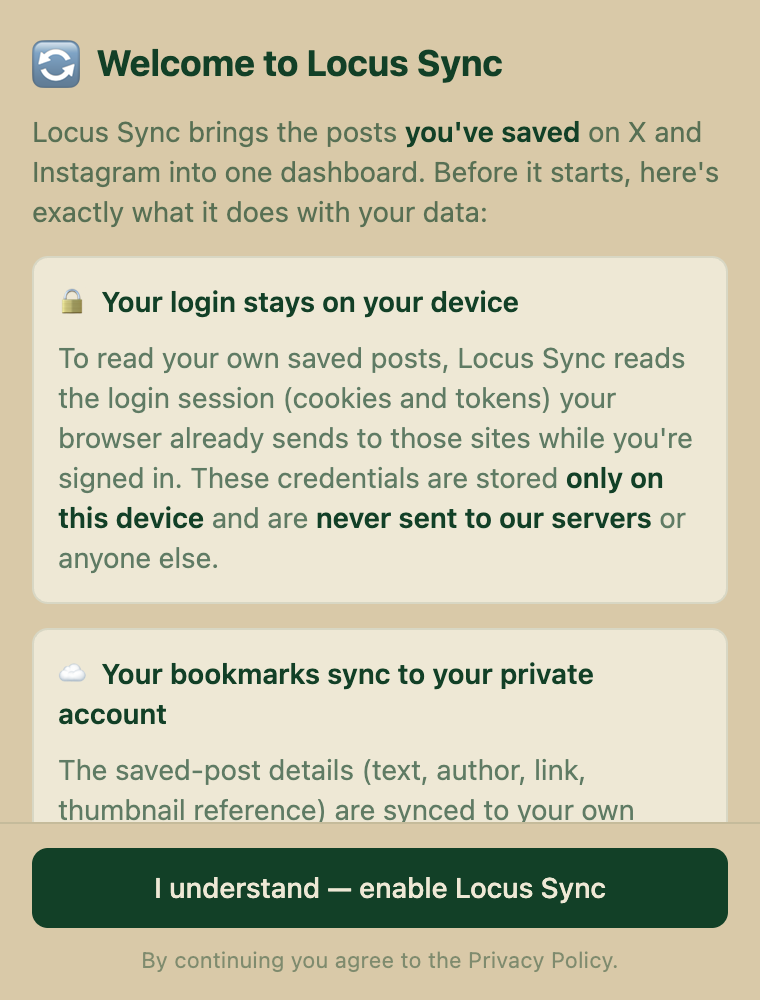
First open: the data notice. -
Create an account, or sign in
Continue with Google is the quickest. Or choose Sign up and use an email and password; check your inbox for the confirmation link, then sign in.
Use the same email later in the app. Your library belongs to the account, so the extension, the phone app and the web app all show the same thing when they share one sign-in.
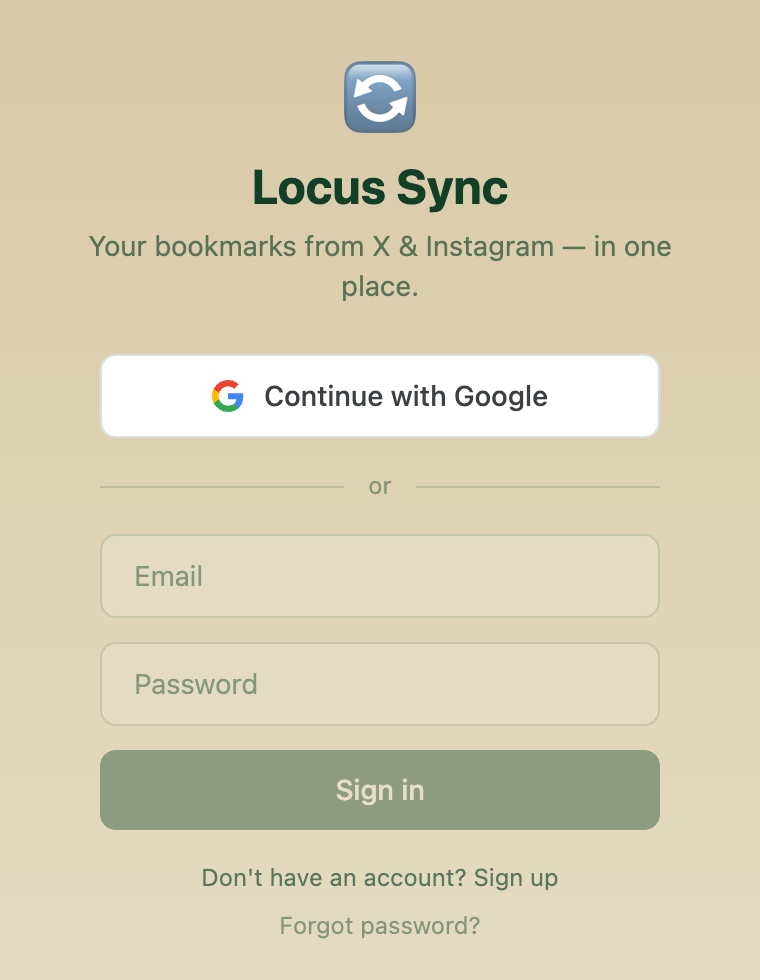
Google, or email and password. -
Connect Instagram and X
There is nothing to link and no password to type into Locus. In that same browser, open instagram.com or x.com, signed in the way you normally are, and browse for a few seconds. The extension picks up your session on its own. Your platform logins stay in local browser storage on your machine and are never transmitted to us or to anyone else.
To check, open the extension and click the gear for Settings. Under Platform Sync each platform reads Connected once the extension has seen you on the site. Until then its Sync button is greyed out.
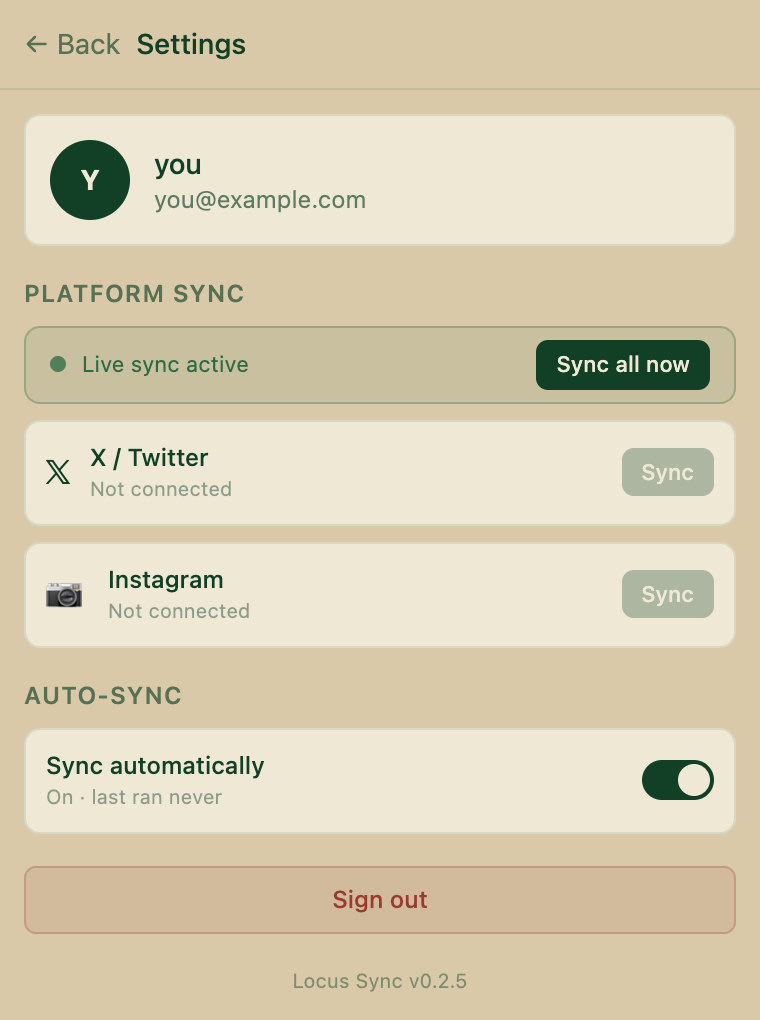
Before visiting the sites. 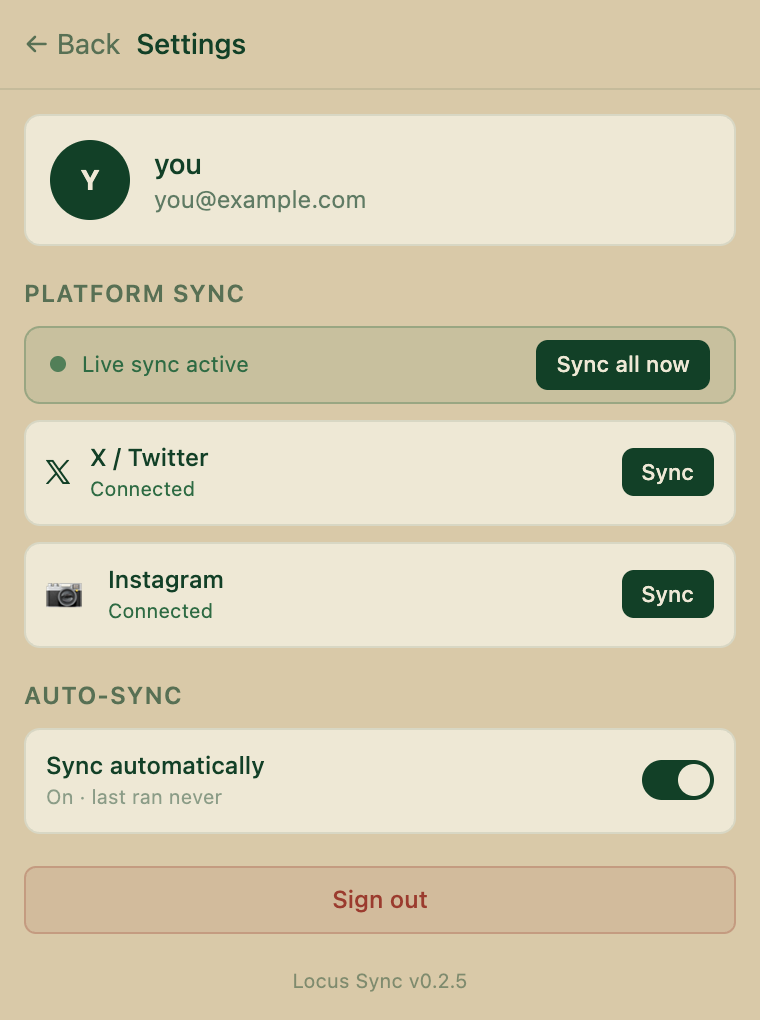
After a visit to each site. The question mark in the extension's header reopens its own short getting-started guide at any time.
-
Grab what you already saved
Instagram
Once you are signed in to the extension, any instagram.com page shows a Locus Sync card in the bottom-right corner. Click Open Saved & Grab. It takes you to your Saved page and starts the grab on its own. Leave the tab open until it says Done; a large Saved folder takes a while.
If the card cannot work out your username, it tells you the manual route: open your profile, then the menu, then Saved, and click Grab Saves on that page.
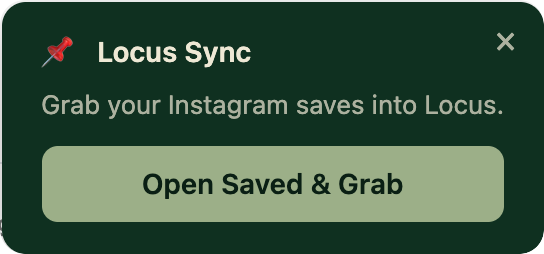
Bottom-right of instagram.com. X
Go to x.com/i/bookmarks. A Locus Sync card appears bottom-right with Grab X Bookmarks. Click it and wait for Done.
Or, in the extension's Settings, press Sync next to X. A background tab opens your bookmarks page, takes everything, and closes itself.
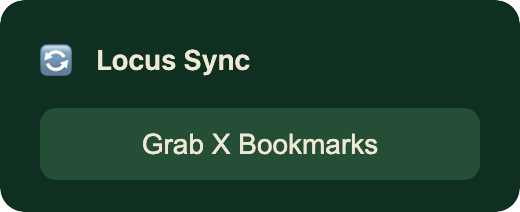
Bottom-right of x.com/i/bookmarks. After the first grab you are done with this step for good. Sync automatically is on by default in Settings and keeps new saves flowing in.
-
Choose your app
Same library, two ways in. Sign in with the same email you used in step 03.
iPhone
The iOS build ships through TestFlight, Apple's app for beta software. Install TestFlight from the App Store first, then open the link below on your phone; the app is listed as Locus Sync. Sign in with Google or Sign in with Apple.
Join the TestFlight betaWeb
my.studiolocus.app works in any browser, nothing to install. Sign in with Google or a one-time email link. On a phone, add it to your home screen if you want it alongside your other apps.
Open the web appYour grabbed posts are read and filed as they arrive: recipes, workouts, places, products. The first pass over a large library takes a while. Leave it and come back.
If something looks wrong
Troubleshooting
Add to Chrome is greyed out.
You are on a phone, or in a browser that is not Chrome. The extension installs in desktop Chrome, Edge, Brave and Arc only.
I installed it and cannot find it.
Click the puzzle-piece button at the right end of Chrome's address bar and pin Locus Sync, as in step 02.
A platform says Not connected.
Open that site in the same browser, signed in, browse for a few seconds, then reopen the extension. Connecting happens by visiting; there is no button to press.
No Locus card appears on Instagram.
The card only shows once you are signed in to the extension (step 03). If you closed it with the X, it stays hidden for that browser session. Go to your Saved page directly instead: profile, menu, Saved. The Grab Saves card is there.
The Sync button next to X is greyed out.
X is not connected yet. Open x.com in that browser, signed in, then try again.
Can I do the sync from my phone?
No. Chrome extensions are desktop only. Run the grab once from a computer; the phone app reads the same library.
My library in the app is still empty.
The grab has to finish first, then the filing pass. If both have run and the app is still bare, check that the extension and the app are signed in with the same email.
Do I have to keep pressing Sync?
No. After the first grab, Sync automatically (on by default in Settings) keeps new saves flowing in.
Not setting up today
Leave your email.
We will tell you when something changes. Say what you save most if you like; it shapes what gets built next.
Just looking
Open the demo.
A filed library you can browse without installing anything or making an account.
Open the demo